Connect your Gmail or Google Workspace mailbox in about two minutes. Emails with your contacts land on their records, and you can send and reply without leaving LeadCenter.
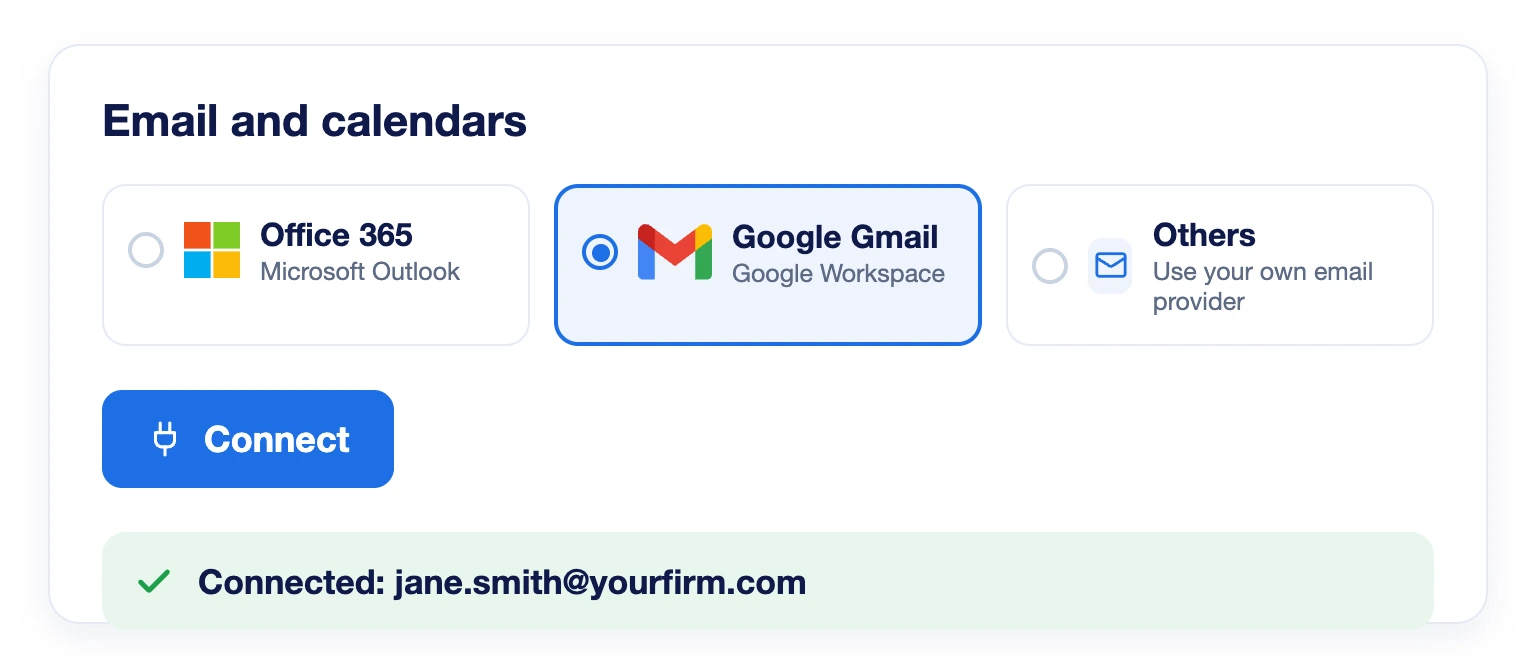
Open Personal profile, go to Email and calendars, choose Google Gmail and click Connect. Sign in with Google and approve. No app password, no 2-Step Verification setup and no server settings.
Every Client Email on the Contact Record
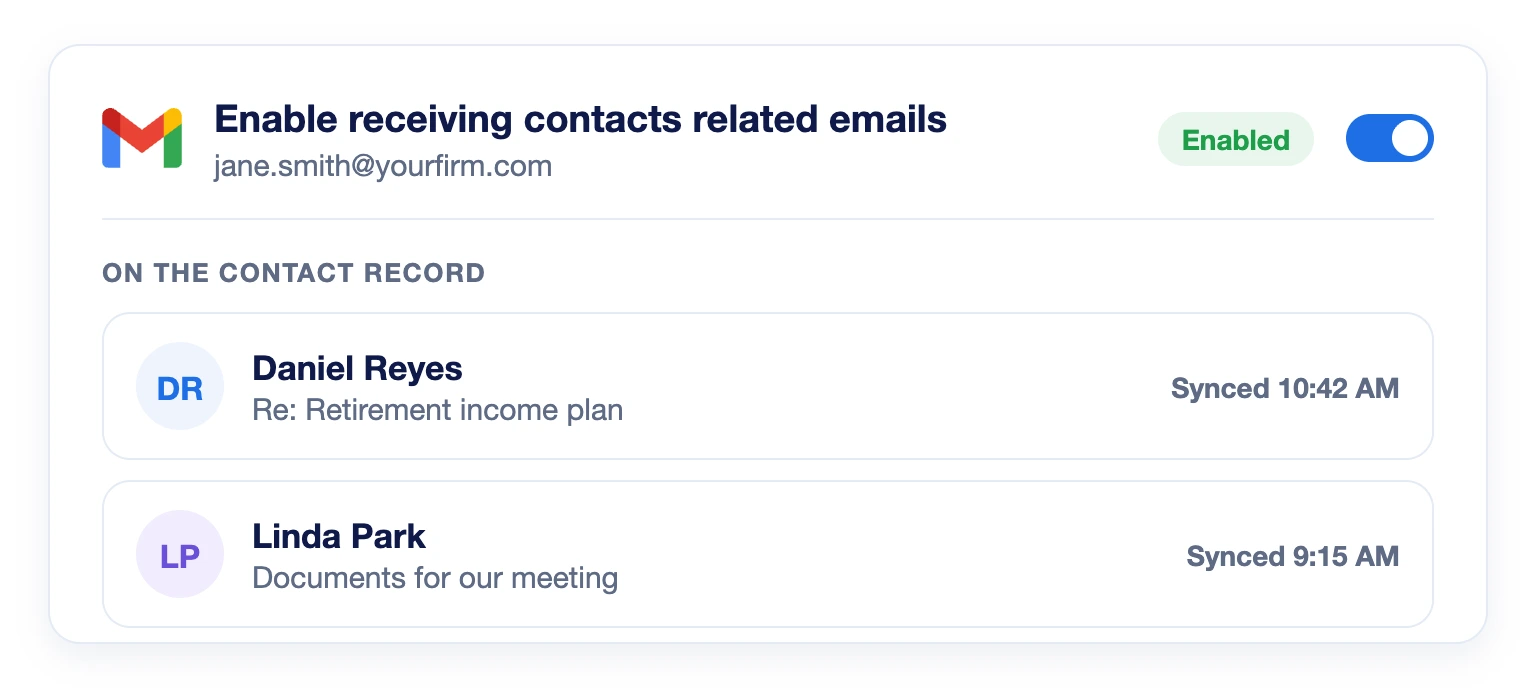
Turn on Enable receiving contacts related emails. From then on, emails you exchange with a contact appear on their record automatically, matched by email address. Your whole client history stays in one place.
Send and Reply Without Switching Apps
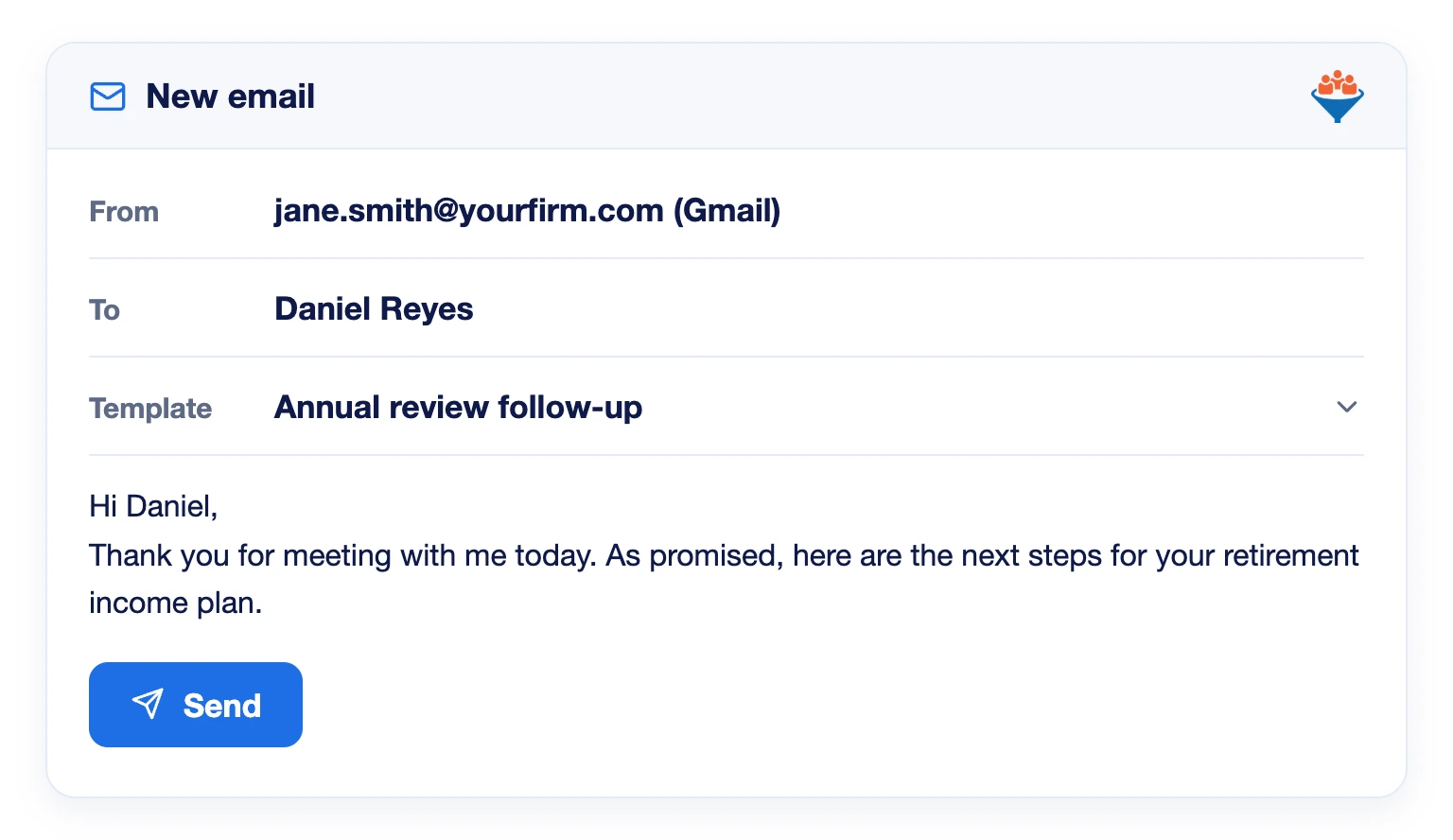
Write to contacts and reply to them from inside LeadCenter, using your saved email templates. No copying between Gmail and your CRM.
You Decide Who Sees Your Emails
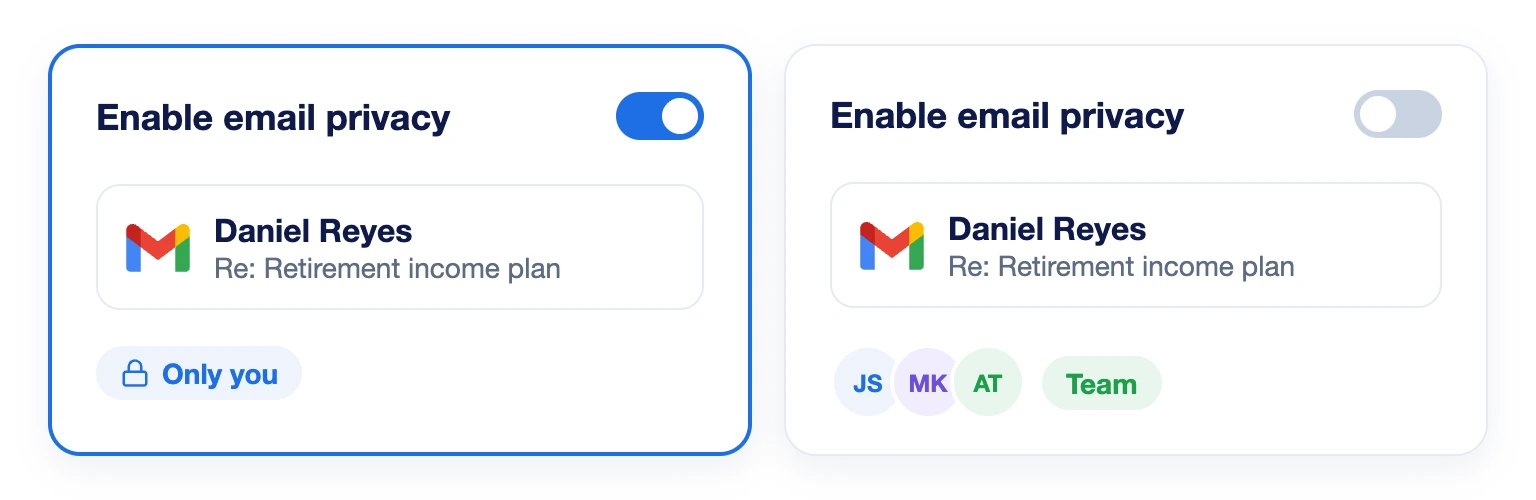
Turn on Enable email privacy and only you can read your synced emails. Leave it off and your team shares visibility of client correspondence on the contact record.
No. Sync covers emails with your contacts from the day you connect. Your mailbox history is not imported.
Only emails exchanged with addresses that belong to a contact in LeadCenter, once Enable receiving contacts related emails is turned on.
No. Appointment confirmations, reminders, workflows and email marketing send from a shared email account in LeadCenter.
Your sign-in has likely expired or been revoked. Gmail does not send a notice, so check Email and calendars and reconnect.
Emails already logged stay on the contact records. You can reconnect any time from Email and calendars.
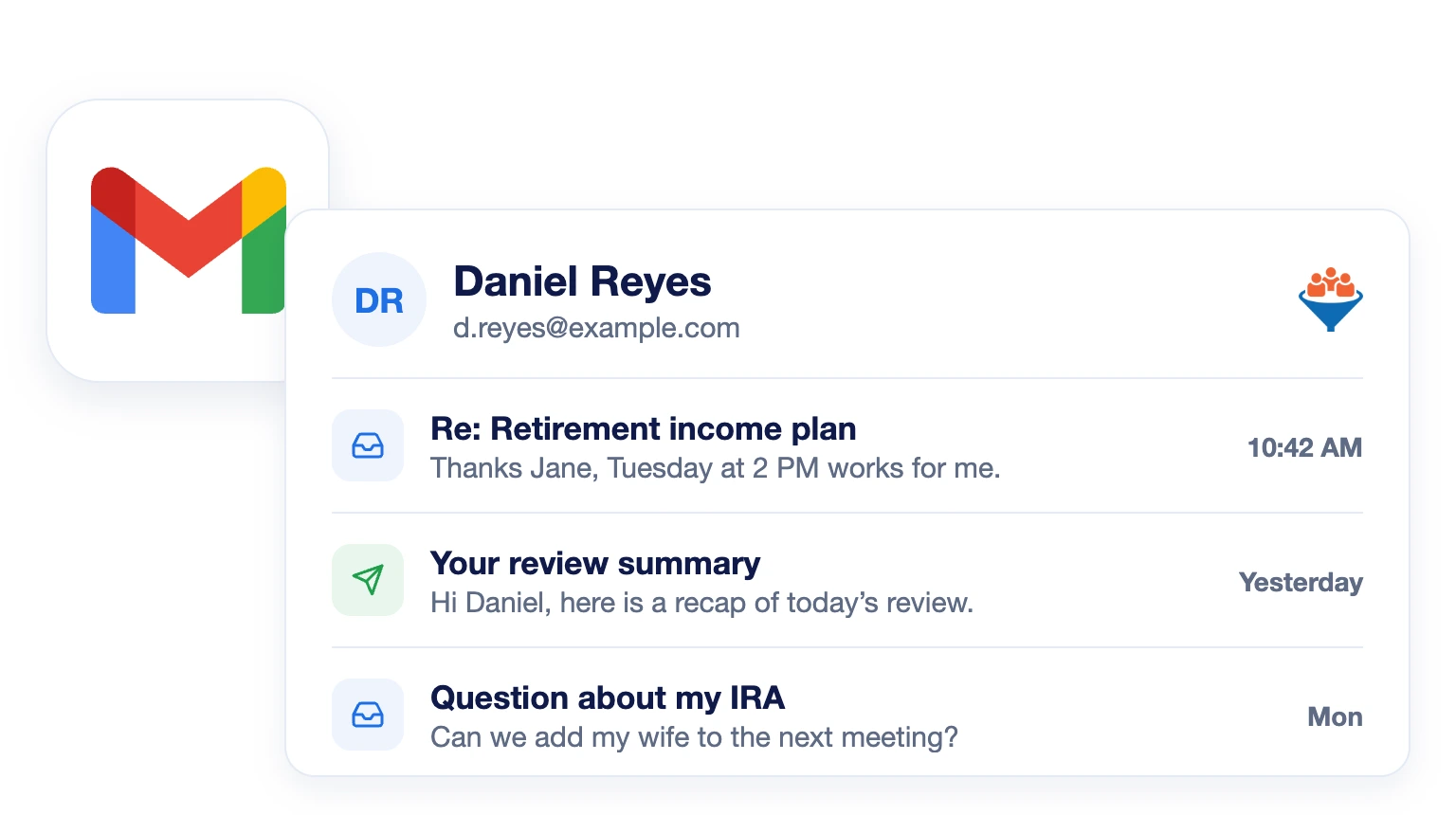
Bring Your Gmail Inbox Into LeadCenter
Keep every client conversation on the contact record, and reply without switching apps.
Automate your marketing, sales, and operations processes and increase your lead-to-business conversion rates with a fully automated platform designed specifically for financial advisors.